
Virtual tours have quickly become a key part of modern property marketing. Whether you’re showcasing a rental, new-build development, or a luxury home, offering an immersive walkthrough helps buyers and tenants engage more deeply with your listings.
If you’re using the Houzez WordPress theme, adding virtual tours is straightforward. Houzez supports a range of embed types, and with the right setup, you can even automate virtual tour imports through your property feed.
This guide explains exactly how to add virtual tours to your listings and ensure they display perfectly on your Houzez website.

Why Virtual Tours Matter
A virtual tour can significantly improve the effectiveness of your property pages. Benefits include:
- Higher engagement and longer time on page
- Increased viewing requests
- Better performance for long-distance buyers
- More professional, content-rich listings
- Reduced time spent arranging unnecessary viewings
In short, virtual tours help visitors experience a property before stepping through the door.
Where Virtual Tours Appear in Houzez
Houzez displays virtual tours in a dedicated section on the single property page. Depending on your property layout, the tour may appear:
- In its own “Virtual Tour” tab
- Inside the media area beneath the gallery
- As an expandable embedded section
- Alongside floorplans, video tours, or attachments
This ensures your virtual tour has the space it needs and remains easy for viewers to find.
Supported Virtual Tour Providers
Houzez supports any virtual tour provider that offers an embeddable iframe or shareable URL, including:
- Matterport
- Kuula
- CloudPano
- EyeSpy360
- Zillow 3D Home
- Metareal
- Any custom 360° platform with embed support
Most providers give you a simple “Embed” or “Share” code which you can paste directly into Houzez.
How to Add a Virtual Tour Manually
Adding a virtual tour to a single property takes just a few moments.
Step-by-step:
- When logged into WordPress, go to ‘Real Estate > Properties‘ and edit the listing.
- Scroll to the Property Details meta box.
- Find the field labelled Virtual Tour.
- Paste your iframe embed code or virtual tour URL.
- Click Update to save your changes.
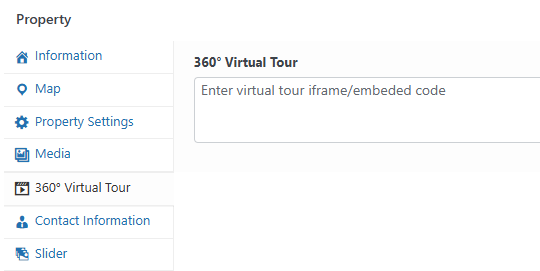
Houzez will now display the virtual tour in the appropriate section of the property page.
Adding Virtual Tours Automatically via the Houzez Property Feed Plugin
If you import your listings using the Houzez Property Feed plugin, you can import virtual tours automatically provided your data source includes a virtual tour field.
For most CRM imports where we know what field the virtual tours will be sent in we’ll import these automatically and there will be nothing required from you end.
Where you’re importing from XML, CSV, or sending data in a custom field you can import the virtual tours by:
- Open your feed configuration under ‘Houzez > Import Properties‘.
- Go to your ‘Field Mapping’ section.
- Look for the field in your feed that contains the virtual tour URL or iframe.
- Map it to the Virtual Tour field in Houzez.
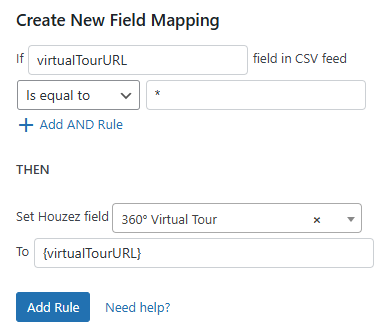
Save and run your import to confirm the tour is applied correctly.
From that point onward:
- Virtual tours are imported automatically
- Updates in your CRM or feed overwrite the tour in WordPress
This ensures your listings always stay consistent and up to date without needing manual edits.
Best Practices for High-Quality Virtual Tours
To get the most from your virtual tours, keep the following tips in mind:
- Use high-resolution imagery for 360° or walkthrough content
- Check mobile display to ensure the tour fits properly on smaller screens
- Avoid autoplay with sound as it can frustrate users
- Use clean, well-lit shots to improve presentation
- Keep video tours concise, ideally under 60–90 seconds
Good presentation makes a noticeable difference to engagement.
Troubleshooting Common Virtual Tour Issues
If your virtual tour isn’t showing here are some simple checks to try:
- Tour not appearing: Ensure you used the embed code, not a basic share link
- White or blank space on the property page: Remove fixed width/height values from the iframe
- Tour blocked: Some security plugins prevent iframes – temporarily disable them to test
- CRM feed missing tour data: Confirm with your provider that the feed includes a virtual tour field
Key Takeaways
Virtual tours bring your listings to life and provide a more immersive experience for buyers and tenants. With Houzez adding them is quick and straightforward, whether you do it manually or import them automatically through the Houzez Property Feed plugin.
A strong virtual tour can set your listings apart, increase engagement, and help convert more visitors into enquiries. Add them consistently and you’ll elevate the overall quality and professionalism of your website.