
High quality images are one of the most important parts of any property listing. They’re what grab attention, keep visitors browsing, and drive enquiries.
But when you’re importing properties automatically from CRMs and external feeds, images can quickly become a source of slow page loads and large media libraries.
In this guide you’ll learn how image imports work in the Houzez Property Feed WordPress plugin, how to optimise them for speed and quality, and how to avoid common issues that can affect your website’s performance.
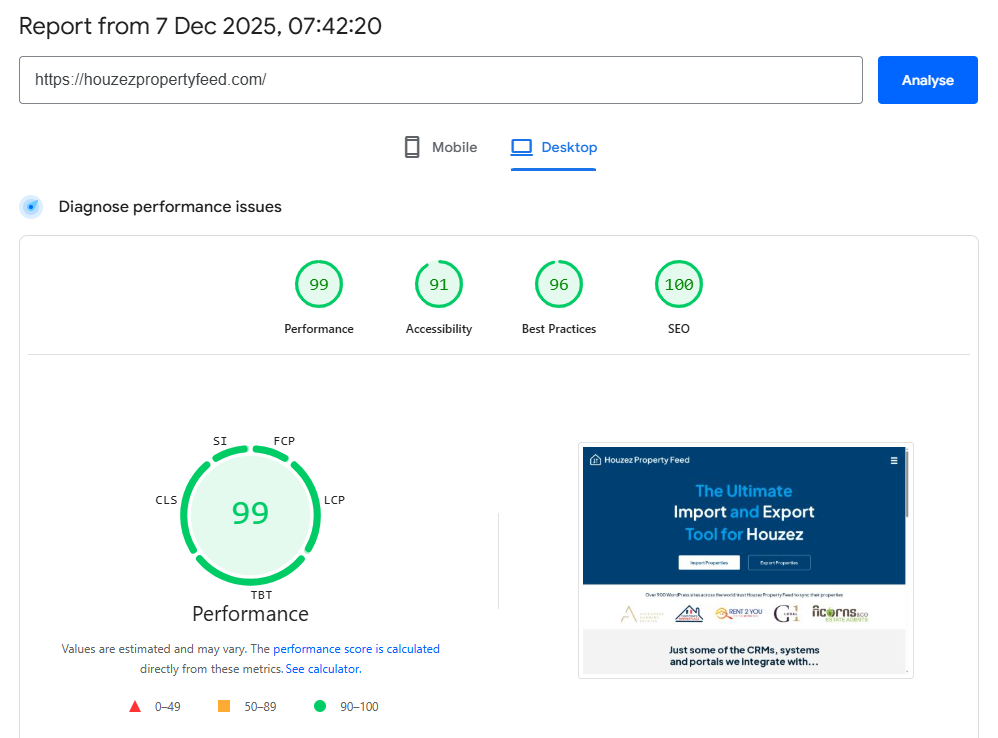
Why Image Optimisation Matters
Images are often the heaviest assets on a real estate website. Without proper handling, you may experience:
- Slow property pages
- Slow search results
- Sluggish mobile performance
- Excessive disk usage
- Overgrown media libraries
- Timeouts during imports
Since images make up the majority of a listing’s page weight, optimising your import process helps keep your Houzez website fast, clean, and reliable.
How Image Imports Work in Houzez Property Feed
When the plugin imports a property, it reads the image URLs provided in your feed and:
- Downloads the images to your WordPress Media Library
- Creates scaled versions based on WordPress/Houzez image sizes
- Links them to the imported property
- Removes them when a property comes off of the market
This process is automatic but performance depends heavily on image size, hosting, and feed quality.
Tip 1: Ensure Your Feed Provides Suitable Image Sizes
Some CRMs and data feeds output very large images (sometimes 8–20MB) intended for print or high-end brochures.
These are far too large for the web.
A good web-friendly size is:
Max width: 2000–2500px
Typical file size: 150–500KB
If your feed includes oversized images, the plugin will still import them but your site may:
- Slow down
- Hit PHP memory limits
- Timeout during large imports
- Fill disk space rapidly
If possible, ask your feed provider to supply web-resolution, pre-optimised versions.
Tip 2: Use a Hosting Plan Suited for Media-Heavy Imports
If you import hundreds or thousands of properties and their images, the quality of your hosting matters.
Look for hosting with:
- SSD or NVMe storage
- At least 2GB RAM for media-heavy sites
- Adequate PHP execution time
- Optimised WordPress configurations
- Generous disk space (or clear upgrade paths)
This avoids incomplete imports or images failing silently.
See our blog post on ‘How to Import and Manage Thousands of Property Listings‘.
Tip 3: Use a CDN (Content Delivery Network)
A CDN serves images from servers closer to your visitors, speeding up load times significantly.
Recommended options include:
CDNs help with:
- Faster delivery
- Lower server load
- Better caching
- Improved mobile performance
Houzez works smoothly with any CDN that integrates at a WordPress level.
Tip 4: Clean Up Unused Images When Properties Are Removed
If a property comes off the market and the feed no longer includes it, the plugin can automatically remove the property and its media depending on your settings.
Under ‘Houzez > Import Properties > Settings > Removing Properties‘ you can choose whether to:
- Keep the images
- Keep just the first image. Useful should someone stumble across an old property URL
- Delete the images
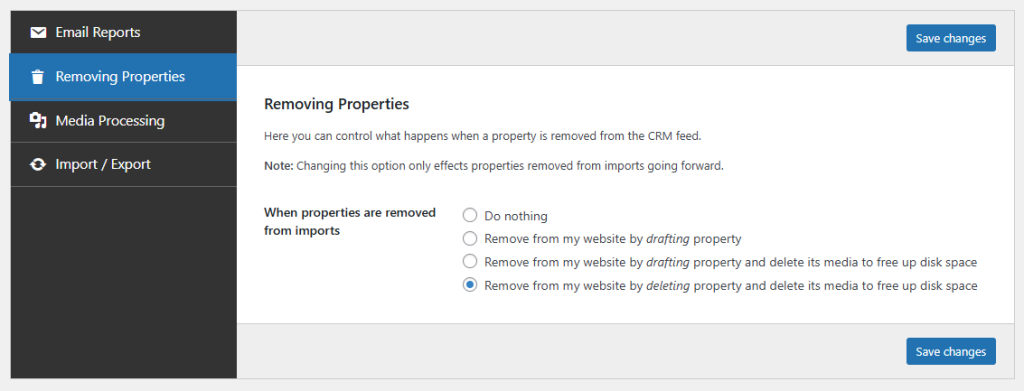
If you import high volumes of properties then choosing a cleanup option prevents your media library from ballooning over time.
Tip 5: Optimise WordPress Image Sizes
WordPress automatically generates multiple image sizes when an image is uploaded. Houzez uses these across:
- Galleries
- Search cards
- Featured listings
- Property sliders
To keep things efficient:
- Ensure your WordPress image sizes are suitable for your layout
- Avoid extremely large thumbnail sizes
- Disable sizes your theme doesn’t need
You can make these adjustments in WordPress under ‘Settings > Media’. Small changes here can significantly reduce storage and processing load.
Tip 6: Use Image Compression Plugins
If your feed supplies large images and you can’t control the original source, you can compress them automatically after import.
Popular options include:
These reduce file sizes without noticeably affecting quality.
In Summary
Optimised image imports make your Houzez website faster, cleaner, and easier to maintain. With a few simple adjustments, from feed quality to hosting, CDN usage, and removal settings, you can dramatically improve both performance and reliability.
By combining Houzez’s flexible media display with the automation of the Houzez Property Feed plugin, you ensure your listings always look sharp without slowing down your site.